









Introduction
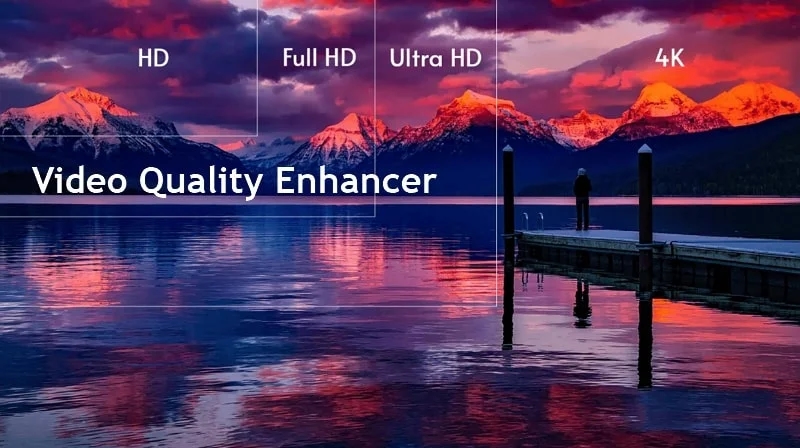
In today’s digital world, video quality plays a crucial role in making your videos stand out. So, whether you’re working with old, shaky, and low-resolution videos or simply looking to polish your content, using a professional video quality enhancer is essential. With advancements in AI technology, video enhancers are now widely available to sharpen details and upscale 1080p resolution videos to 4K or even higher.
In this article, you’ll learn about the top video quality enhancers, both offline and online options, to transform your video content into something truly remarkable.
Part 1. Understanding Resolution: 4K Resolution vs 1080p
Before exploring the top video quality enhancer tools, it’s crucial to consider the 4K resolution vs 1080p comparison.
1080p resolution, also known as Full HD, features a resolution of 1920 x 1080 pixels. It provides sharp, clear video suitable for YouTube videos, streaming, and personal projects. However, it seems less crisp on larger screens or in professional settings.
In contrast, 4K resolution contains 3840×2160 pixels, resulting in sharper, crisper videos, especially on larger displays. It has become the gold standard in video production with significantly improved detail and depth.
Part 2. Top 11 Video Quality Enhancer Tools Offline and Online
Below are the 11 best video enhancer to help you easily increase resolution and improve quality. Let’s delve into their details:
1. HitPaw VikPea
Compatibility: Windows, Mac, Online, Android, iOS
HitPaw VikPea is a renowned video quality enhancer that utilizes cutting-edge AI algorithms to breathe new life into your videos. It can upscale your low-quality footage to 4K and even 8K resolution with a single click.
With the various enhancement models, it helps restore old family memories, refine details, enhance facial features, add colors to b&w videos, repair damaged footage, and much more. Its universal format support and automatic functionalities make it perfect for improving both portraits and anime videos. You can even preview the results before exporting to make changes instantly.
Main Features:
- Offer a simple, easy-to-navigate UI, suitable for beginners
- Help unblur, denoise, colorize, and restore low-light videos
- Cloud-accelerated processing for stable, large-scale tasks
- Smooth playback via stabilization/frame interpolation models
- Allow enhancing multiple videos at once, boosting productivity
How to Enhance Videos using HitPaw VikPea:
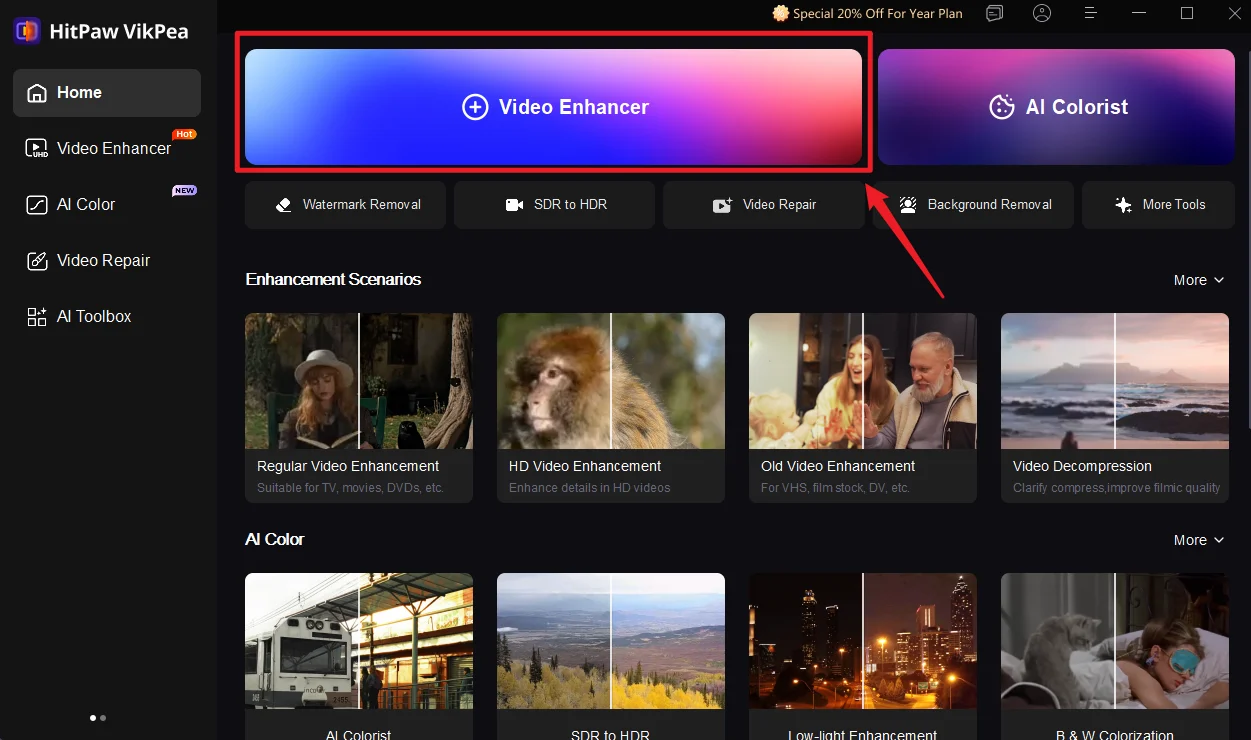
Step 1. Import Video
After downloading, installing, and launching this program, click the “Video Enhancer” button in the side column. Now, import the required video to enhance.
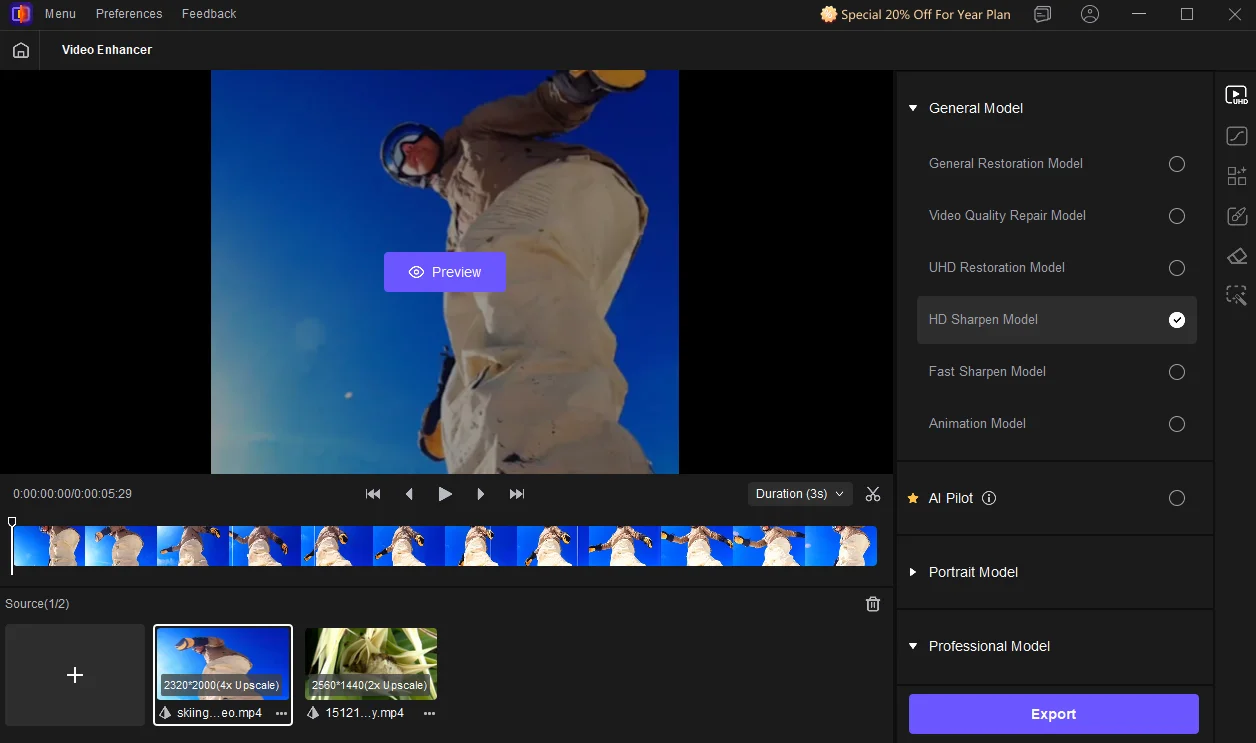
Step 2. Select Enhancement Model
Next, select the desired enhancement model from the side column, such as General Model, AI Pilot, and others. For each one, you need to choose the preferred module.
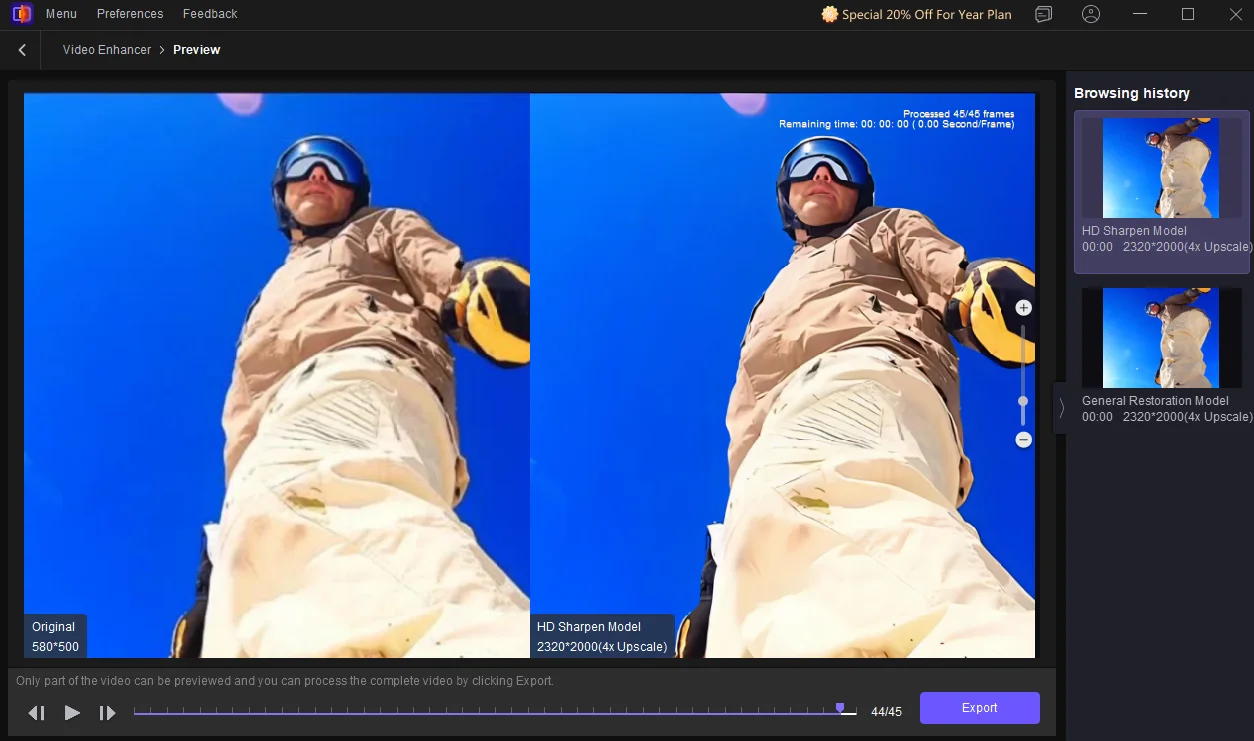
Step 3. Preview and Export
Then, pick the resolution under “Export Settings.” Lastly, press the “Preview” tab to check the final quality. If it’s satisfactory, hit “Export” or “Cloud Export.” That’s it!
Pros:
- Diverse AI-driven models
- Super fast processing
- Versatile creative tools
Cons:
- Watermark in the free version
- Premium features are behind the paywall
2. Adobe Premiere Pro
Compatibility: Windows, Mac, iOS
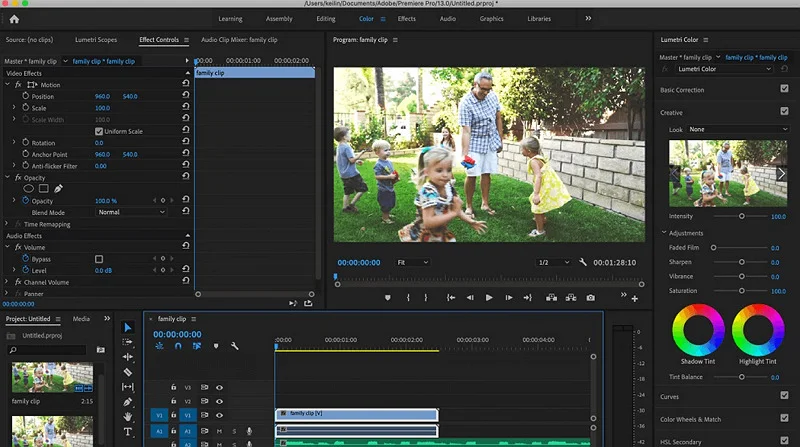
Adobe Premiere Pro is a studio-grade video editor that offers advanced enhancement features for fine-tuning your videos to 4K resolution. It can magically add new frames to extend your clips. Its Lumetri Control panel supports manual color grading, color correction, and effect controls to make your video look professional.
Pros:
- Integration within the Adobe ecosystem
- A lot of editing functionalities
- Extensive library of effects and presets
Cons:
- Steep learning curve
- Costly subscription
3. Topaz Video AI
Compatibility: Windows, Mac
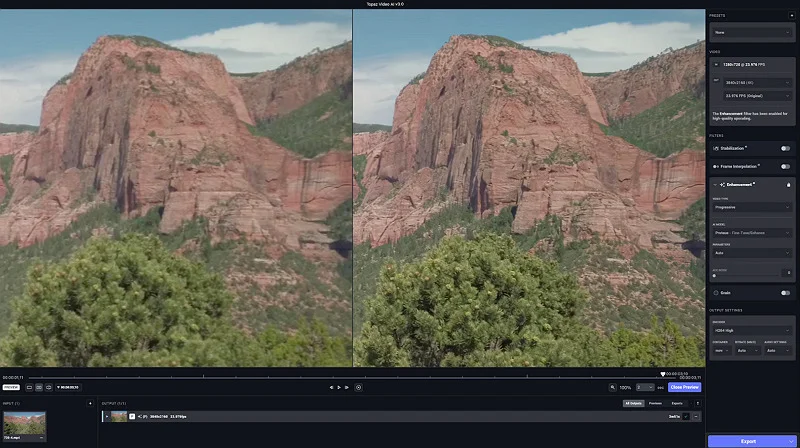
Topaz Video AI is another remarkable AI video quality enhancer that can upscale videos to 4K, 8K, and even 16K resolution. It offers specialized 19 enhancement models for various content types, including films, animated content, and low-light footage. You can also remove noise, recover facial details, stabilize frames, and achieve slow-motion effects.
Pros:
- Batch processing
- Cloud rendering
- High output quality
Cons:
- High system requirements
- Very pricey
4. AVCLabs Video Enhancer AI
Compatibility: Windows, Mac, Online
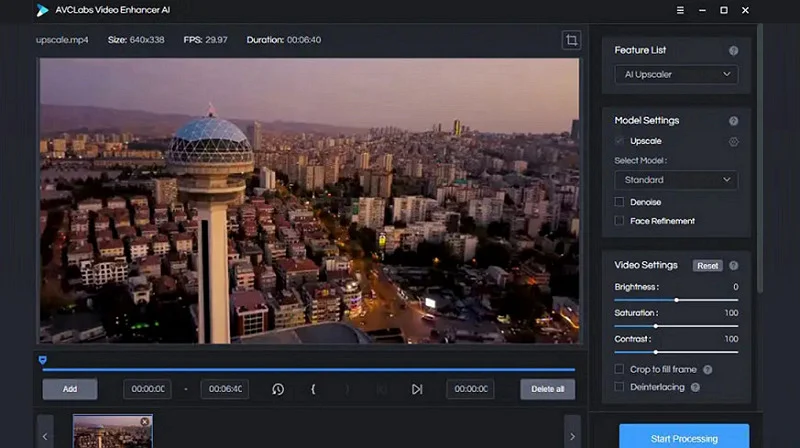
AVCLabs Video Enhancer AI is a simple yet powerful software to upscale any low-quality video to 1080p, 4K, or 8K resolution. With its intuitive interface, you can effortlessly remove noise and artifacts to enhance video clarity. It also helps stabilize shaky footage and colorize b&w videos in a single tap.
Pros:
- Single and multi-frame enhancement
- Super-resolution upscaling
- Batch processing
Cons:
- Processing can be slow
- No editing features
5. Final Cut Pro
Compatibility: Mac
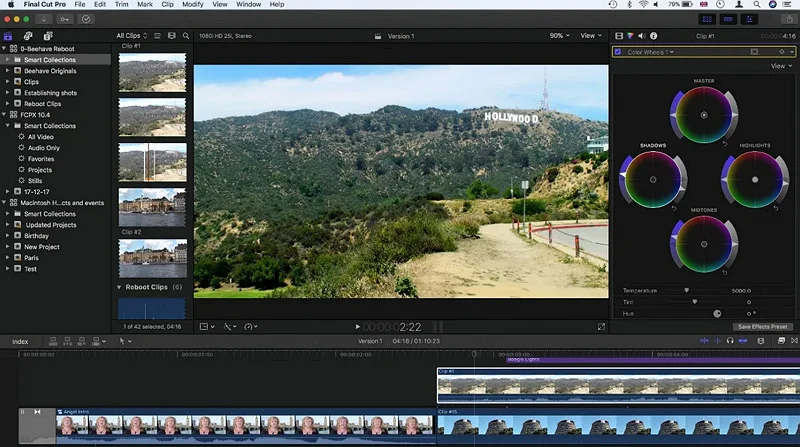
Apple’s Final Cut Pro is an industry standard for video production, offering numerous editing and enhancement features, from 4K upscaling to video sharpening and noise reduction to enhance your blurry videos. You can also try color grading tools to manually adjust color wheels, color curves, and hue/saturation curves for creating professional-style content.
Pros:
- Support HDR video and raw files
- 360-degree editing options
- Powerful third-party integrations
Cons:
- Not available for Windows users
- Lack of dedicated enhancement features
6. CapCut
Compatibility: Windows, Mac, Online, Android, iOS
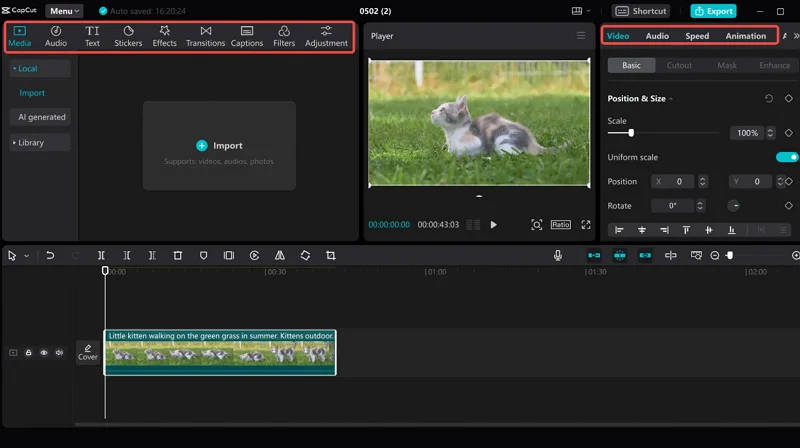
CapCut is a free, comprehensive video editing tool that has gained fame due to its intuitive interface and AI-driven enhancements. It lets you change the brightness, contrast, and sharpness of your clips, resulting in stunning visuals. You can also upscale your videos to 4K resolution without compromising on quality.
Pros:
- Free and easy to use
- Work with all popular video formats
- Pre-made filters, effects, and transitions
Cons:
- Lack of advanced color grading tools
- Not suitable for complex projects
7. Media.io
Compatibility: Online, Android, iOS
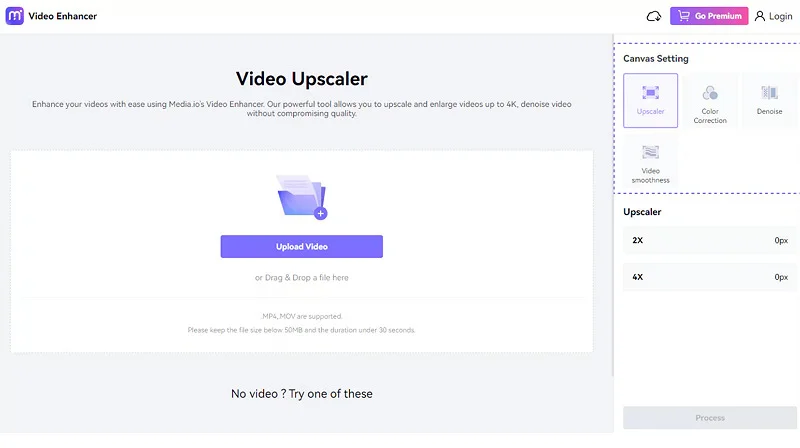
Media.io is a video quality enhancer 1080p online free tool that enables users to upscale and enlarge videos to 4K resolution in seconds. It helps denoise and restore blurry or old videos while retaining the original quality. You can also color correct and sharpen videos with a few clicks.
Pros:
- Batch processing
- AI enhancement
- Cloud storage
Cons:
- Slow processing time
- Advanced features require payment
8. TensorPix
Compatibility: Online
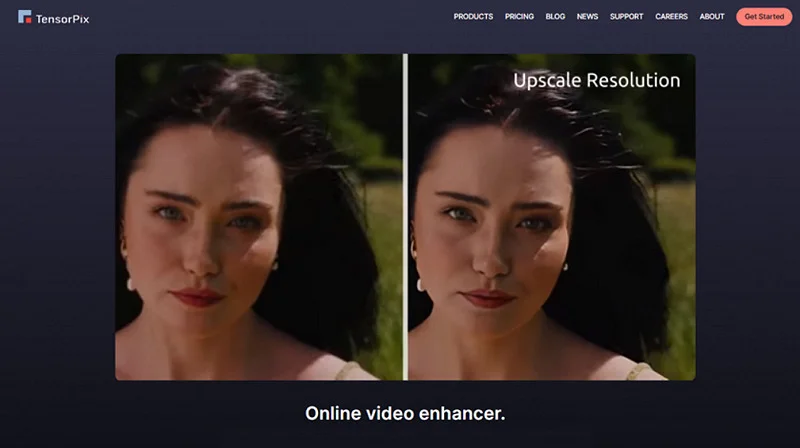
TensorPix is another AI-powered tool that enhances videos by increasing resolution and sharpness, perfect for improving 1080p footage into stunning 4K quality. It offers various filters to deinterlace, denoise, stabilize, and fix blurry details. With its GPU-accelerated servers, it can process hundreds of videos at 100x the speed of average PCs.
Pros:
- Boost frame rate up to 8x
- API integration
- Enhance videos in 3 minutes
Cons:
- Suitable for shorter clips
- Limited customization options
9. Clipchamp
Compatibility: Online, iOS
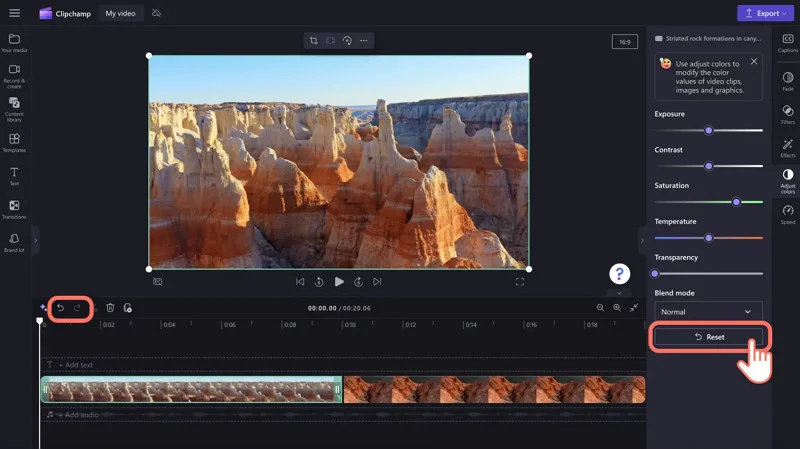
Clipchamp offers a fantastic video quality enhancer that helps users improve video quality by changing brightness, contrast, and saturation levels for free. It also provides features such as resolution upscaling, color correction, and enhancing the look with various filters, including double exposure, film grain, and color grading options.
Pros:
- Enhance video, image, or GIF
- Allow import from cloud storage
- Export output in 1080p resolution
Cons:
- Leave a watermark in the free plan
- Less precise control over enhancement
10. KineMaster
Compatibility: Android, iOS
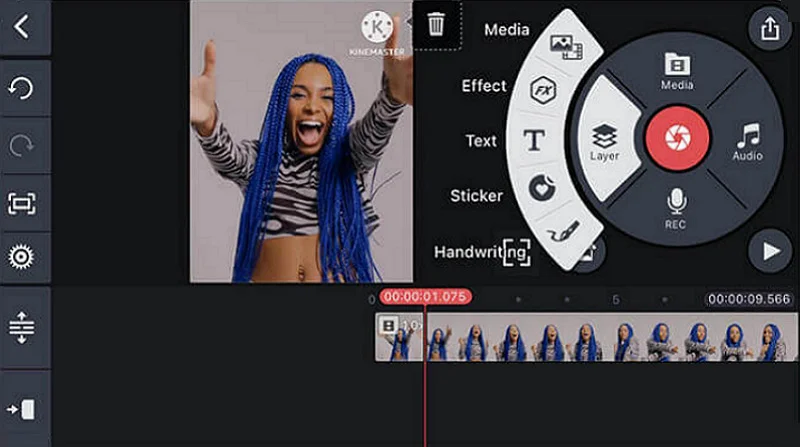
KineMaster is a popular mobile video editor that offers high-quality templates with AI style and visual effects, enabling users to enhance the quality of videos on their smartphones. Its enhancement toolkit includes color wheels for color grading, curve adjustments for contrast control, and selective saturation for color targeting.
Pros:
- Support high-quality 4K export
- Desktop-level layer-based editing
- Frame-by-frame enhancement accuracy
Cons:
- The interface is not user-friendly
- Free version includes a watermark
11. Remini AI
Compatibility: Online, Android, iOS
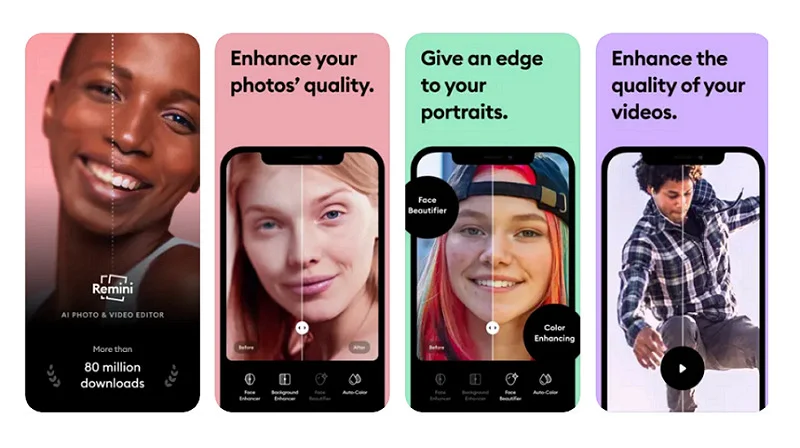
Remini AI utilizes deep learning models to enhance video quality, upscale resolution, improve background, correct color, and sharpen or unblur old footage, in just one click. Ideal for portrait-level enhancement, it can detect, reconstruct, and refine facial features frame by frame. Thus, you can achieve precise, sharp, high-definition results.
Pros:
- API services
- Enhance both video & images
- Fast, cloud-based processing
Cons:
- Lack advanced manual controls
- Less effective for landscapes or cinematic footage
Part 3. Criteria for Choosing the Best Video Quality Enhancer
When choosing a video quality enhancer, always consider the following factors:
- Ease of Use: Look for an enhancer with a user-friendly interface, especially if you’re a beginner.
- Processing Speed: Select a tool that can process videos at a super-fast speed and enable batch processing while maintaining quality.
- Resolution Support: It should support different resolutions, i.e., 1080p, 2K, 4K, and even 8K.
- Output Quality: A good video quality enhancer can sharpen details, reduce noise, and enhance colors.
- Price: Pick the tool that fits within your budget. A free or trial version offers basic features, while premium functions require a subscription.
FAQs about Video Quality Enhancer
1. Can a human eye see the difference between 1080p and 4K?
Yes, the difference is noticeable, especially on larger screens. While 1080p resolution offers sharp results, 4K delivers an unparalleled level of detail, making it perfect for large display screens.
2. Can a video quality enhancer improve old footage?
Yes, video quality enhancers like HitPaw VikPea utilize AI and noise reduction technology to restore and enhance old, grainy videos, thereby improving clarity, sharpness, and resolution.
Conclusion
With the advanced AI video quality enhancer, improving your video content has become easier than ever. Whether you’re aiming for sharper 1080p or stunning 4K resolution, this post has provided various tools to help you achieve remarkable results. However, HitPaw VikPea stands out for its intuitive interface, quick processing, impressive enhancement features, and high-quality output. Try it today and effortlessly upgrade your videos.