









Introduction
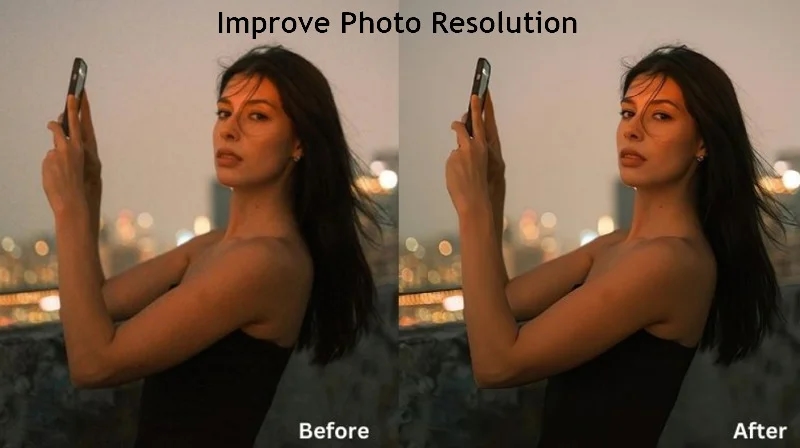
Have you ever taken a perfect photo only to find it looks blurry or pixelated? Whether it’s a professional headshot, product image, or cherished memory, having high-resolution photos makes a huge difference. Although AI tools make it easier to sharpen details, restore lost clarity, and enhance overall quality, knowing how to improve photo resolution on a specific device is necessary.
In this guide, you’ll learn how to improve resolution of a photo on desktop, web, or mobile to achieve crisp, high-quality results.
Part 1. How to Improve Photo Resolution on Windows/Mac
Here are some advanced software programs to improve photo resolution on a computer. Let’s explore each one in detail:
1. HitPaw FotorPea
HitPaw FotorPea is a remarkable software to upscale blurry and low-resolution photos without compromising quality. It can reconstruct high-frequency texture and details in your pictures with super-resolution technology to make them look natural and flawless. With its various AI enhancement models, you can also enhance portraits, repair old or vintage collections, colorize black-and-white pictures, and more. It even allows you to enhance multiple images simultaneously, saving you time and effort.
Main Features:
- Automatic and intuitive, suitable for beginners and professionals
- Offer advanced AI models to enhance images based on their type
- Help enlarge photos without losing quality, contrast, or sharpness
- Support multi-model processing to help achieve the desired results
- Provide a real-time preview to check output resolution and clarity
How to Improve Resolution of Photo using HitPaw FotorPea:
Step 1. Upload Photo
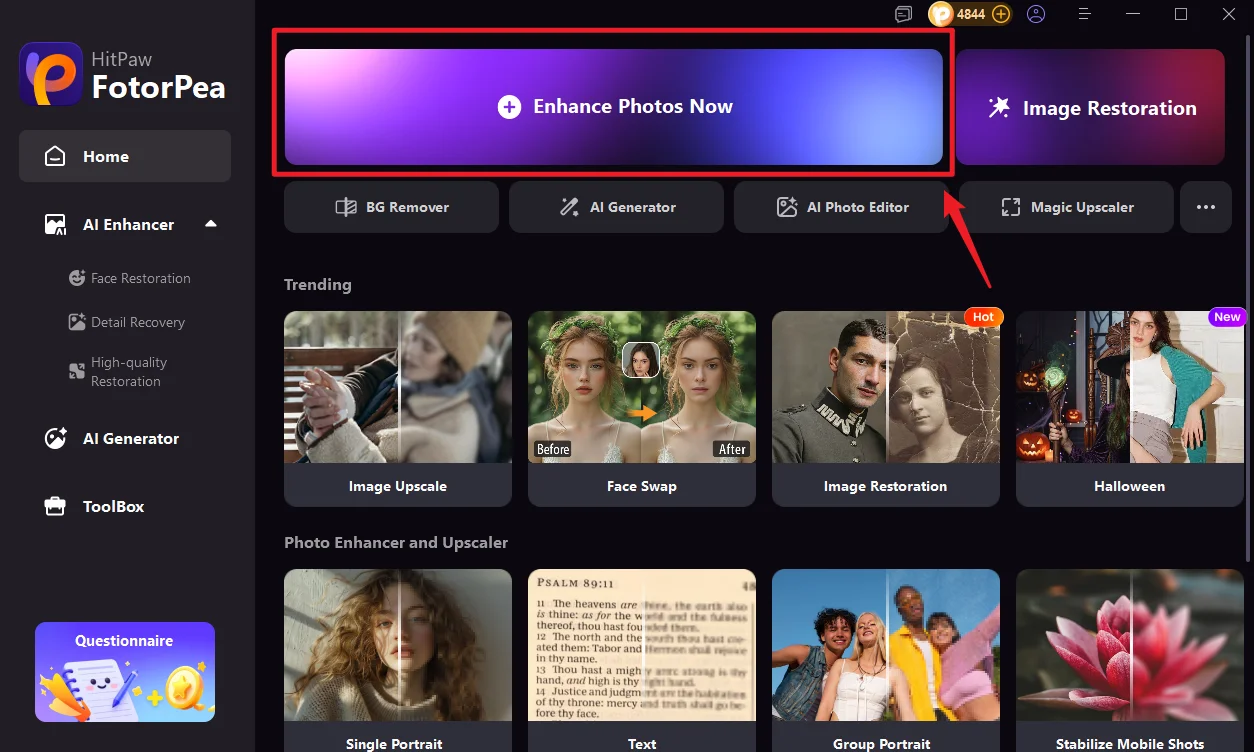
First of all, download, install, and launch this software. Now, click “Enhance Photos Now” and import the required photo.
Step 2. Customize the Upscale Model
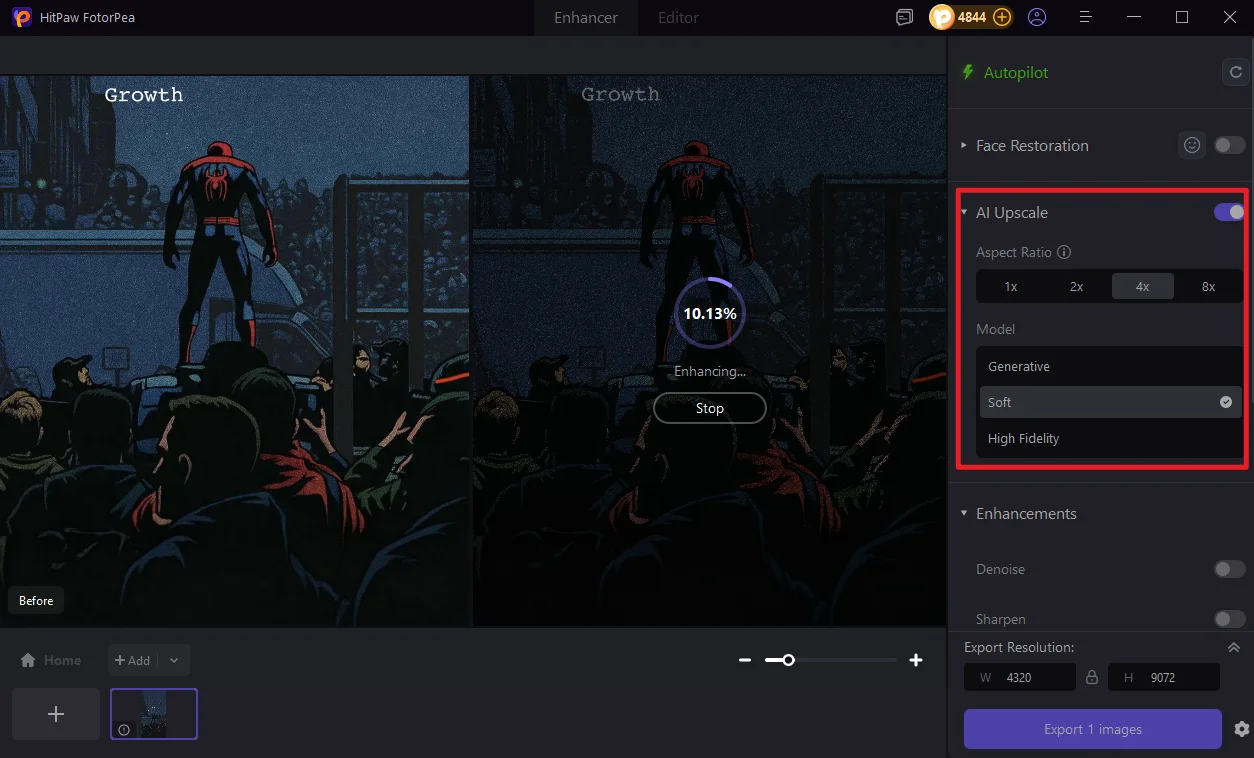
From the side column, turn on the switch for the “AI Upscale” option, choose the aspect ratio, and pick the desired model.
Step 3. Preview and Export
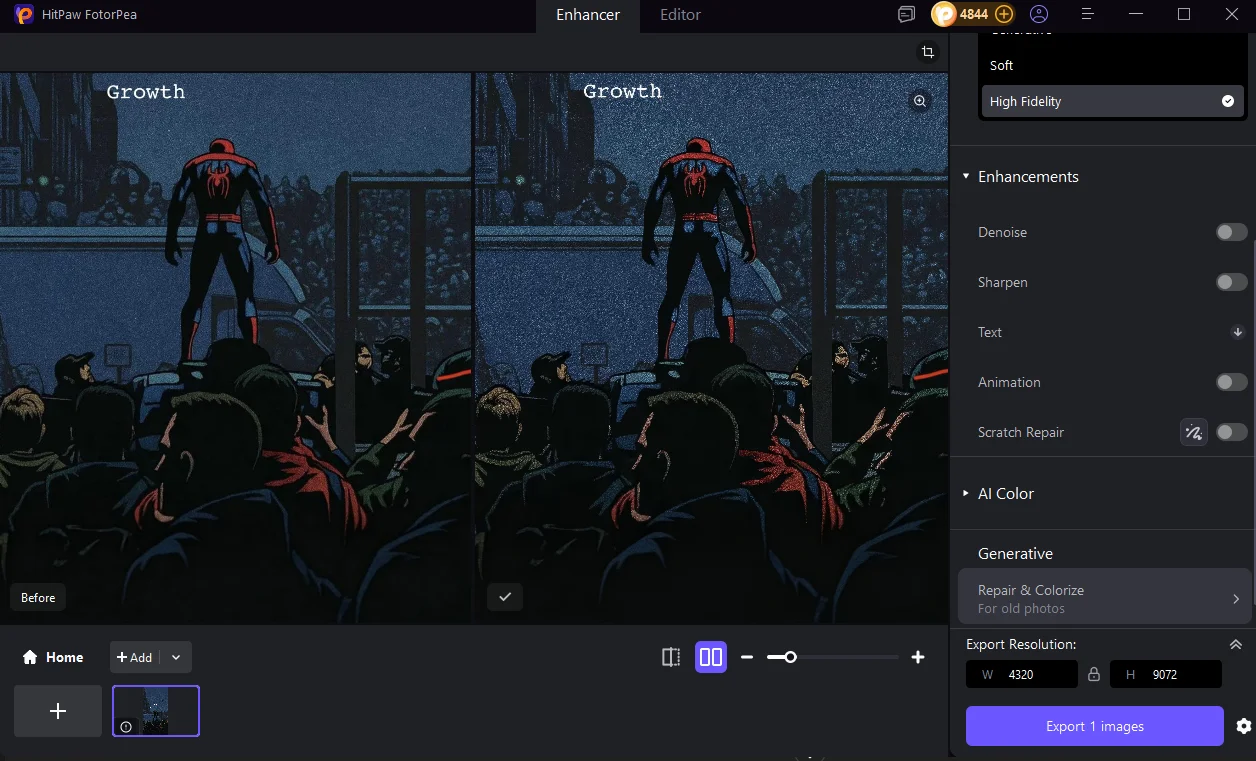
Lastly, press the “Preview” tab. If the results are satisfactory, open settings to select the export format, quality, and other options for “AI Enhancer.” Then, hit “Export.”
2. Photoshop
Adobe Photoshop is a professional-grade photo editing software that offers precise creative control over photo resolution and quality. It not only upscales low-resolution images by multiplying the number of pixels but also helps refine details, remove blur, and enhance textures, thus delivering high-quality output. Its additional features include resizing the image and changing backgrounds.
How to Improve Photo Resolution with Photoshop:
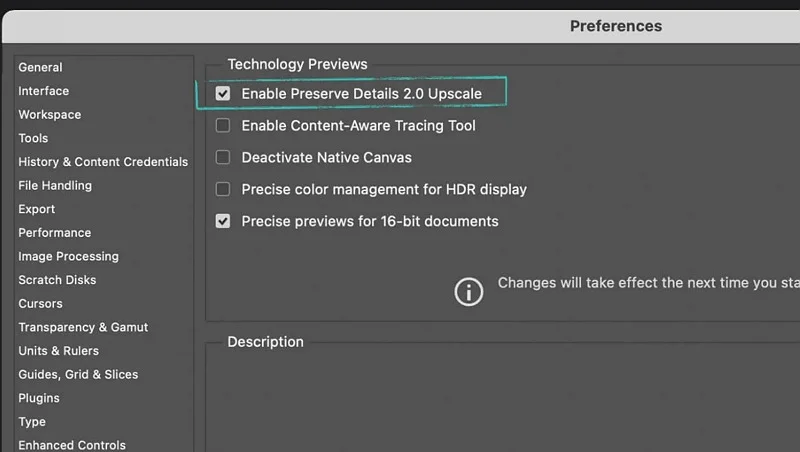
Step 1. After opening the photo, click “Menu” > “Preferences” > “Technology Previews.” Now, check the “Enable Preserve Details 2.0 Upscale” box.
Step 2. Next, return to the image and select “Image Size.” Checkmark “Resample” and enter new dimensions.
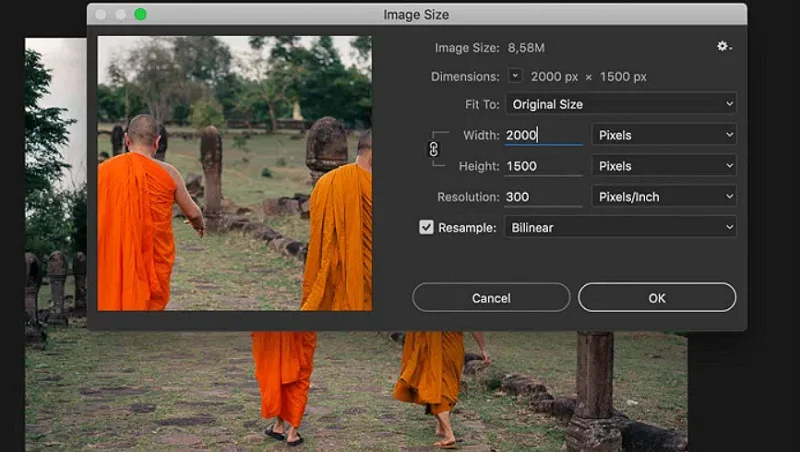
Step 3. Switch the resampling method from “Automatic” to “Preserve Details 2.0.” Your photo will be upscaled.
3. Luminar Neo
Luminar Neo is a popular AI-driven photo editor that simplifies the image enhancement process. Its Upscale AI tool incorporates advanced algorithms to automatically improve sharpness, clarity, and detail in low-quality, pixelated photos. It also offers additional features, such as denoising, supersharp, and color options, to improve photo resolution without requiring manual adjustments.
How to Improve Resolution of a Photo via Luminar Neo:
Step 1. Launch this software, click “Add Photo” to upload the image, and go to the “Edit” section to make any adjustments.
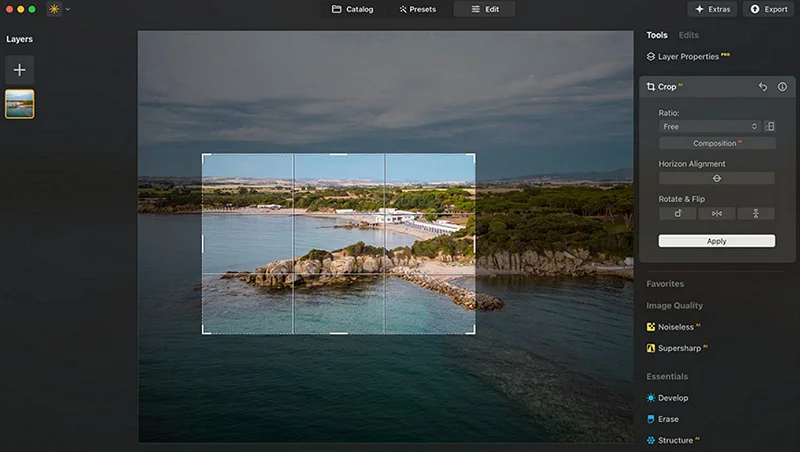
Step 2. Then, drag it to the “Upscale” box under “Resolution Enhancement,” choose the upscaling option, and tap “Upscale.”
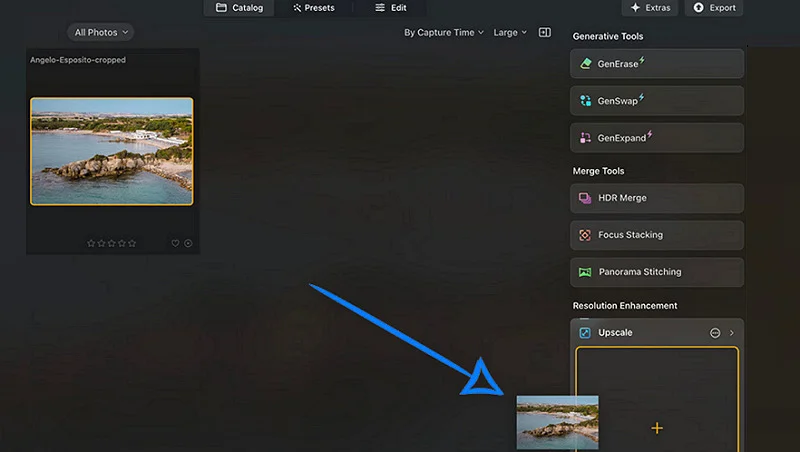
Step 3. After processing, you can find the upscaled photo in the “Upscale” folder.
Part 2. Methods to Improve Photo Resolution Online
For those who prefer easy accessibility over powerful features, let’s dive into two online tools to improve photo resolution:
1. Pixlr Express
Pixlr Express is an online photo editor offering a range of AI tools to enhance or upscale images effortlessly. It can help increase the photo resolution, sharpen shaky or out-of-focus photos, and remove noise. Besides, you can auto-adjust or manually change the vibrance, saturation, contrast, exposure, smoothness, and other details to achieve the desired output.
How to Improve Photo Resolution using Pixlr Express:
Step 1. Open this tool’s website and click “Open Image” to import the photo.
Step 2. Now, choose “AI Tools,” pick the “Super scale” or “Super sharp” tool to apply the effect.
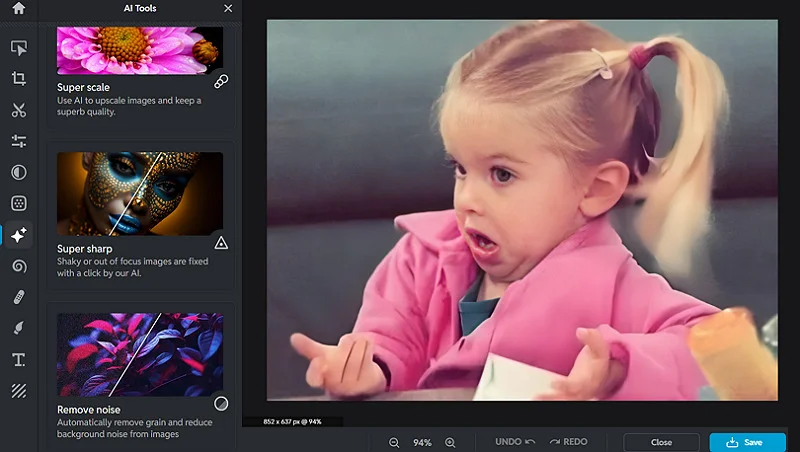
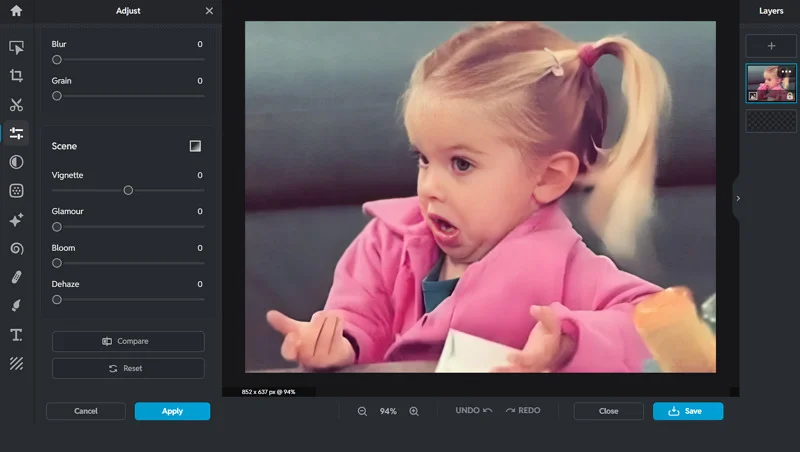
Step 3. Tap the “Adjust” button to change the color, light, details, and scene parameters. Hit “Save.”
2. Let’s Enhance
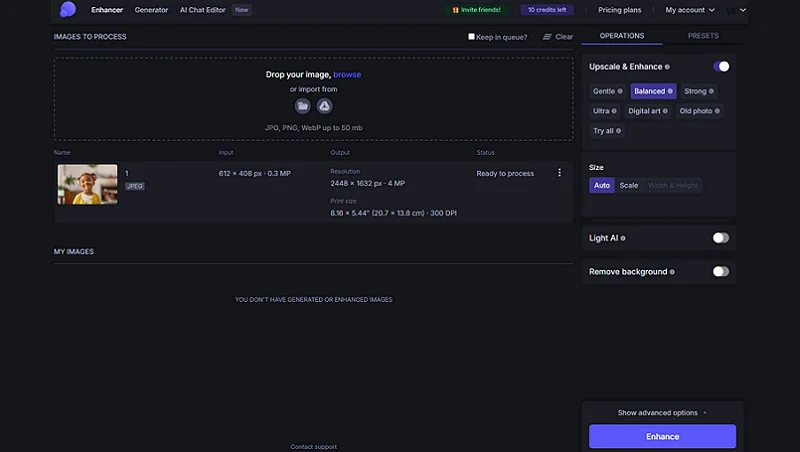
Let’s Enhance is a browser-based tool that utilizes AI technology to upscale your photo up to 16x while preserving its quality in a single click. It also helps enhance the photo quality by fixing pixelation or blur, correcting colors or lighting, and removing artifacts. You can even upload and edit multiple pictures for an efficient workflow.
How to Improve Resolution of Photo with Let’s Enhance:
Step 1. After accessing its website, upload the required photo.
Step 2. Now, turn on the switch for “Upscale & Enhance” and choose the desired type.
Step 3. Adjust the size, tap “Enhance,” and then save the upscaled photo.
Part 3. How to Improve Resolution of a Photo on Mobile
Mobile apps help fix blurry or low-quality images on the go. Here are the best apps to improve photo resolution on Android and iPhone:
1. Remini AI
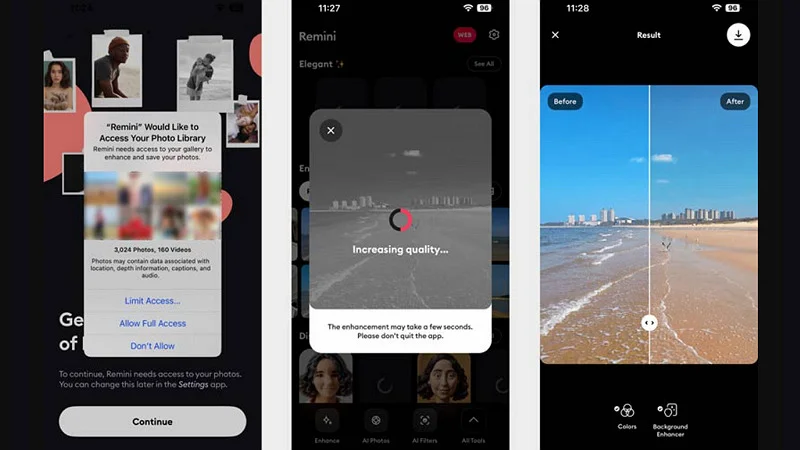
Remini is a mobile app that offers a simple, user-friendly interface to upscale your images in just a few seconds. Its deep learning technology helps enhance your photos by detecting faces, colors, or other elements and applying the necessary adjustments. However, it’s ideal for restoring old, blurry images and colorizing black-and-white photos.
How to Use the Remini AI App to Improve Photo Resolution:
Step 1. Launch the app on your phone and give access to the gallery.
Step 2. Now, click “Enhance” and select the required picture to start the process.
Step 3. Later, you can enhance the background or adjust the colors. That’s it!
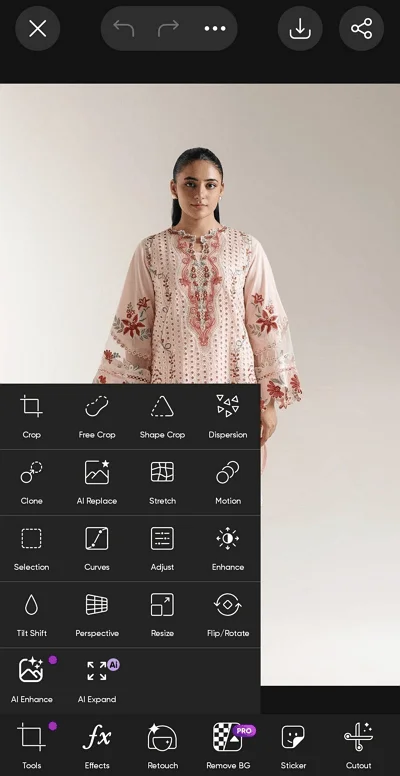
2. PicsArt
PicsArt is an all-in-one photo editing app to improve photo resolution with creative filters and powerful AI tools. It allows users to sharpen images, enhance edge details, adjust brightness, contrast, and clarity, apply artistic effects, add text & stickers, and remove unwanted backgrounds. You can also change the image dimensions if needed.
How to Improve Photo Resolution using PicsArt:
Step 1. After launching the app, click “+” at the bottom and choose the photo.
Step 2. Next, select the “AI Enhance” tool for automatic enhancement.
Step 3. Lastly, you can adjust the “Intensity” slider and hit the “download” icon.
Part 4. FAQs about Photo Resolution Improver
1. Can you convert a low-resolution image to high resolution?
Yes, you can upscale an old, low-resolution photo using any of the tools above. However, HitPaw FotorPea is an excellent AI-powered solution for adding details and enhancing the clarity of your photos.
2. Which is the best software to improve photo resolution?
While many apps perform well, HitPaw FotorPea stands out for its user-friendly interface, batch processing, and professional-quality output. It can restore faded colors, repair scratches, and upscale photos with ease.
Conclusion
Improving photo resolution does not have to be complicated. Whether you prefer using your PC, phone, or browser, this post has offered several tools to improve photo resolution. Although you can choose any tool depending on your requirements, HitPaw FotorPea is highly recommended for its ease of use and powerful functionalities. Let’s try it today and turn every picture into a masterpiece!