





Creating videos used to mean filming, editing, adding music, and spending hours on small details. Now, if you have a phone and a few images, you can create engaging video content in minutes.
In this guide, you’ll learn how to use a free AI image to video generator on mobile for Android. We’ll cover what image-to-video tools can do, how to write better prompts, and how to create videos for social media, products, stories, and more.
What Is an AI Image to Video Generator?
An AI image to video generator turns a still image into a short animated video. You upload a photo, describe the motion you want, and the AI generates movement, camera effects, background animation, and sometimes sound.
For example, you can upload:
- A product photo and make the camera slowly orbit around it
- A travel photo and add moving clouds, waves, or people walking
- A portrait and create subtle blinking, smiling, or head movement
- A car image and animate it driving down a road
- An illustration and turn it into a short animated scene
These tools are especially useful for Android users who want to create Reels, TikTok videos, YouTube Shorts, product ads, or visual storytelling content without using a desktop computer.
How to Create AI Image-to-Video Content on Android
The basic process is simple. While each platform looks different, the steps are usually similar.
Step 1: Choose a clear image
Start with a high-quality image. It does not need to be professionally shot, but the main subject should be easy to see.
For better results:
- Use images with good lighting
- Avoid blurry faces or very low-resolution photos
- Keep the subject centered when possible
- Choose a clear foreground and background
- Avoid images with too many small details
For product videos, use a clean background. For portraits, make sure the face is visible. For landscapes, select photos with visual depth, such as roads, mountains, water, or city streets.
Step 2: Upload the image to an AI video tool
Upload your photo and select an image-to-video feature.
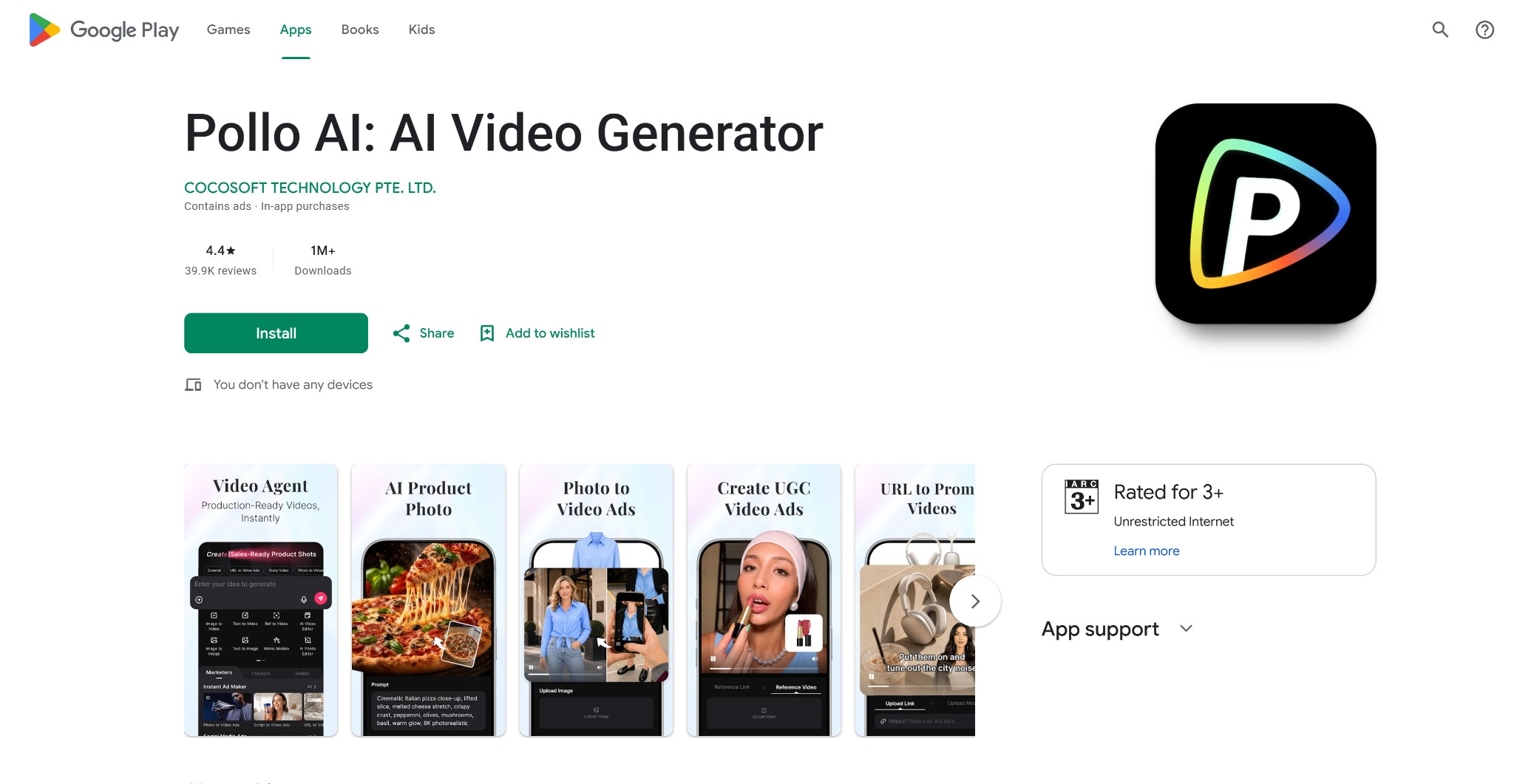
Pollo AI is one option worth trying because it brings multiple AI video models together in one app. You can download Pollo AI app in Google Play, upload an image, enter a prompt, and experiment with different video-generation models without switching between many separate tools.
This can be helpful if you want to compare video styles, motion quality, or creative results.
Step 3: Write a specific motion prompt
Your prompt tells the AI what should happen in the video. The clearer your instruction is, the better the result is likely to be.
A simple prompt structure is:
Subject + action + camera movement + setting or mood
For example:
- “A woman smiles gently and looks toward the camera, soft sunlight, slow camera push-in.”
- “A red sports car drives quickly along a mountain road, cinematic tracking shot, sunset lighting.”
- “A coffee cup on a wooden table, steam rising naturally, slow zoom in, cozy morning mood.”
- “A man and his grandson walk toward the sea, waves moving in the background, wide cinematic shot.”
Avoid vague prompts like “make it cool” or “animate this.” Tell the AI exactly what movement you want.
Step 4: Select video settings
On Pollo AI, you are able to choose:
- Video length
- Aspect ratio
- Motion strength
- Style
- Audio or sound effects
For TikTok, Instagram Reels, and YouTube Shorts, choose a vertical 9:16 format. For YouTube videos or website content, use 16:9 landscape format.
If you are new to AI video generation, start with subtle motion. Strong motion can sometimes make subjects look less natural.
Step 5: Generate, review, and refine
After generating the video, watch it carefully. Check the face, hands, product details, text, and background.
If the result is not right, adjust the prompt instead of starting from scratch. Generating two or three versions is often the best way to find a usable result.
Best Uses for Image to Video AI on Mobile
Product videos
Turn product photos into short ads for social media or online stores. Animate a skincare bottle, sneaker, gadget, food item, or fashion product with moving light, camera pans, and background effects.
Social media content
Create quick visual posts from travel photos, selfies, memes, art, or lifestyle images. Add captions later in a mobile editing app if needed.
Art and animation
Artists can animate concept art, character designs, fantasy scenes, and illustrations. Instead of drawing every frame manually, use AI to test movement ideas quickly.
Educational content
Teachers and content creators can animate historical images, diagrams, book covers, science illustrations, or visual examples to make lessons more engaging.
A free AI image to video generator app can help you turn ordinary photos into content that feels more active, professional, and shareable. Whether you are promoting products, building a social media account, animating artwork, or simply making memories more vivid, image-to-video tools can save significant time.
Pollo AI is a practical option for users who want to explore multiple AI video models in one place. Upload an image, describe the action you want, and create videos directly from your mobile workflow.