





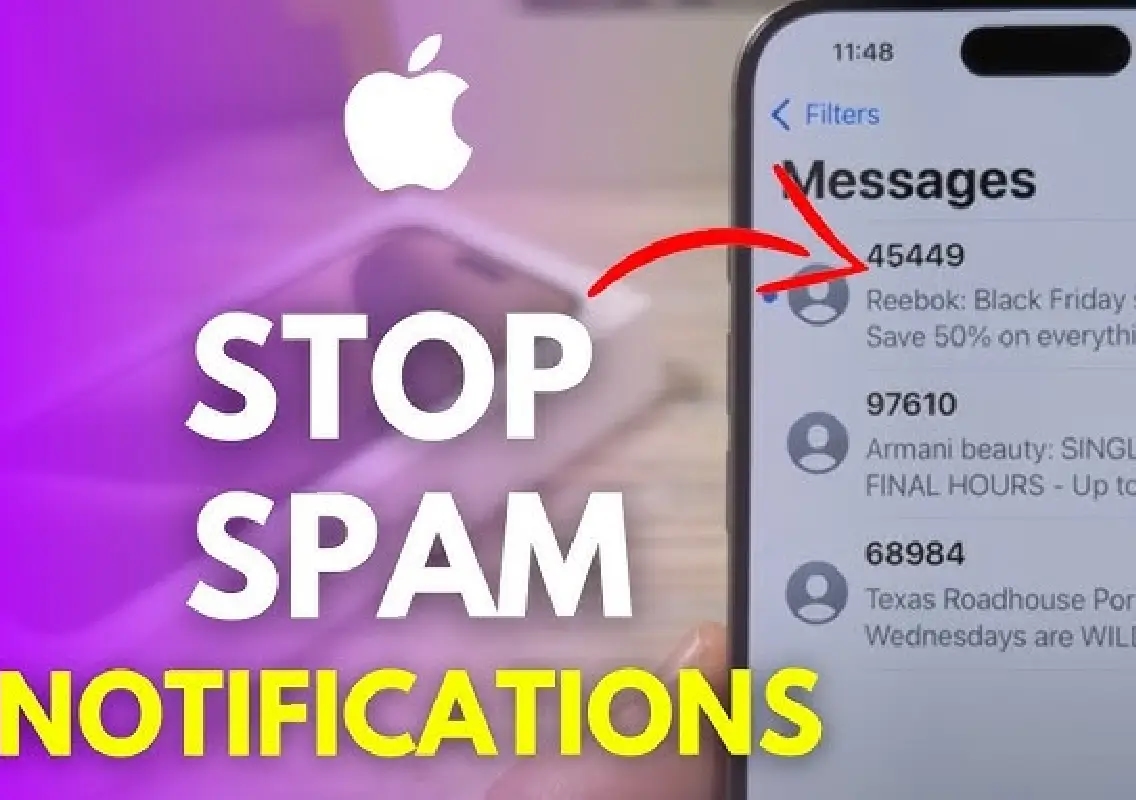


The iPhone has evolved into an all-in-one device, but with more apps comes more unwanted notifications. From spam calls and random texts to push alerts and promotional emails, distractions can quickly pile up. Fortunately, iOS offers several built-in tools to regain control.
Block repeat offenders
The simplest step is blocking persistent callers or texters. Open the contact info in Messages or the Phone app and tap Block. Most third-party apps also provide blocking options.
For noisy apps, go to Settings > Notifications, choose the app and adjust permissions. You can silence sounds, remove Lock Screen banners or disable notifications entirely.
Use Focus modes smartly
Apple’s Focus feature acts as an advanced Do Not Disturb system. Under Settings > Focus, you can create custom modes for work, sleep or personal time. Allow only selected apps or contacts to notify you, while everything else stays muted.
You can even set filters in apps like Mail to hide non-work inboxes during office hours.
Enable AI-based call screening
Newer iPhones support AI-powered call handling. Under Settings > Apps > Phone, enable Screen Unknown Callers to silence unsaved numbers. Some versions also transcribe calls in real time so you can decide whether to answer.
Apple Intelligence can prioritise important notifications and summarise messages, reducing clutter.
Schedule notification summaries
The Scheduled Summary feature bundles non-urgent alerts and delivers them at specific times. Enable it under Settings > Notifications > Scheduled Summary to avoid constant interruptions.
Filter messages and email
In Settings > Messages, activate Filter Unknown Senders to separate texts from unfamiliar numbers.
Apple’s Mail app also includes automatic categorisation — Primary, Transactions, Updates and Promotions — helping you focus on essential emails first.
Remove spam calendars
If you receive strange calendar alerts, check the Calendar app for unknown subscriptions and unsubscribe immediately.
For added protection, third-party apps like Truecaller can identify known spam numbers.
With a few adjustments, your iPhone can shift from a source of distraction to a streamlined productivity tool.
#iPhoneTips #SpamCalls #iOSSettings #TechGuide #newskarnataka