








Have you ever made a video of something perfect and then noticed later that the background had something distracting? A random passerby, a brand logo that you can’t show for legal reasons, or an object that changes the whole mood of the shot. It’s one of editing’s most frustrating parts, especially when the footage is flawless in other ways.
Creators in 2025 still want to see videos without distractions and do not want to spend hours masking frames or learning advanced VFX skills. This is where AI video object remover tools can help. By using the right method, you can take the unwanted objects out of your video clips in a very short time and still be able to keep the sharpness, color, and framing.
Part 1: The Problem Every Editor Faces: Unwanted Objects Ruining Great Shots
Present-day video content is quick to change. Be it YouTube tutorials, branded product content, travel vlogs, or professional ads, audiences anticipate neat visuals. If there is something that distracts from the frame, it can take away the viewer’s focus, and thus, the video quality will be lower.

Common scenarios where removal is needed:
- A random stranger walks into the frame of an outdoor shoot
- Unwanted text, signs, or watermarks disrupt the composition
- Gear reflections reveal your camera setup
- Cars, animals, or background motion take attention away from the subject
- Objects you didn’t notice while filming become obvious during editing
And the challenge goes beyond simply erasing something. The real difficulty is rebuilding what should have been behind it while keeping:
- Texture consistent
- Lighting natural
- Motion smooth
- Resolution intact
Traditional editing often fails here, especially in complex environments or moving shots. That’s exactly why AI has become the new standard.
Part 2: Wondershare Filmora: The Best AI Object Remover for Flawless Editing
If there’s one thing that makes Wondershare Filmora different, it’s the way it balances simplicity with genuinely impressive results. Instead of overwhelming creators with technical controls or hidden panels, Filmora brings advanced AI video object removal editing directly into a clean, intuitive interface, and its AI Object Remover feature is a perfect example of that philosophy.

Filmora AI is much more than a mere removal tool that simply deletes the selected area. It studies the video, recognizes the depth, movement, fabrics, and lighting, and then it recreates the area that is going to be missing in such a way that it seems that the distraction has never been there. The result is natural to the eye and not a fake, blurry, or artificially softened area.
What makes Filmora’s object removal stand out?
- Smart Scene Awareness: It recognizes patterns like skin, sky, fabric, or pavement and blends replacements flawlessly.
- Adaptive AI Motion: Whether the camera moves or the subject shifts, the removal stays consistent frame after frame.
- Creative Flexibility: It is possible to remove the distractions without losing the details, the color accuracy, or the sharpness of the image.
- Pro-Level Results that Beginners can Achieve: The use of advanced techniques like rotoscoping, keyframing, or VFX is not necessary.
What used to be a slow and cumbersome task, Filmora now makes it a fast, almost simple way of the creative process; thus, clean and distraction-free storytelling becomes accessible to the whole creative community.
Part 3: Why Filmora Beats Traditional Object Removal Tools
Before AI technologies were available, the only way to remove objects from a video was through very slow methods such as masking, cloning, or painting each frame in complicated software. In fact, the outcomes were still quite inconsistent and obviously touched up even after several hours of labor.

Typical issues with traditional removal include:
- Ghosting or semi-transparent outlines
- Blurred or mismatched background texture
- Uneven lighting or color shifts
- Frames that don’t align smoothly during motion
- Heavy manual effort with no guaranteed clean result
Filmora’s AI changes the experience completely. Instead of patching the footage, it understands the scene and reconstructs what belongs behind the removed object using:
- AI motion mapping for accurate tracking
- Context-aware background rebuilding
- Automatic consistency blending across frames
- Professional-quality texture and lighting matching
The outcome is clean, natural footage without the complexity, repetition, or frustration of traditional workflows.
Part 4: Pro Editing Tips to Get the Most Out of Wondershare Filmora
Improve the quality of your edits to the greatest extent possible by incorporating these useful tips for Filmora’s AI Video Object Remover
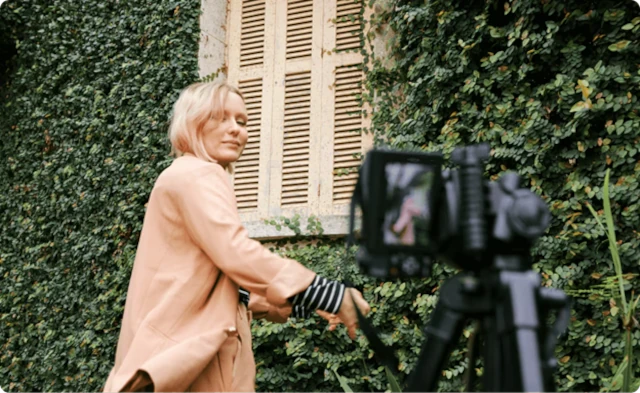
- Stabilize your footage: The AI can follow the objects more accurately when the camera is moving smoothly, and it also prevents the footage from being shaky.
- Keep uniform lighting: The AI can create the backgrounds in a very natural way if the exposure is even and there are hardly any shadows.
- Refine your selection: Clear, precise edges give the AI a better reference for seamless fills.
- Remove objects before adding effects: Applying color grading or sharpening afterward preserves textures and avoids distortions.
- Enable GPU acceleration: Speeds up processing and improves accuracy.
- Export in 4K or high resolution: Retains fine details and ensures professional-quality output.
By implementing these tips, you are making sure that your edits have a professional, natural, and refined appearance every single time.
Conclusion
Object removal powered by AI has been a game changer for editors, as it has made certain tasks that used to require advanced skills now accessible to anyone. Moreover, with Filmora, the whole thing seems to be very simple, quick, neat, and trustworthy. In case you are a tool user who wants to make videos that look professional and are free from distractions without spending a lot of time on manual work, then Filmora would be an efficient option. Use the feature, and see how the AI-assisted editing revolutionizes your work.